With the native Salesforce integration, teams can send global gift cards and money to customers, prospects, and other contacts and accounts directly from the CRM. The integration automatically syncs reward data to Salesforce records, providing real-time visibility into the delivery status of rewards sent and the reward history on each CRM record.
Installing the Tremendous for Salesforce app
Step 1. Add the Tremendous component
1. Log in as an Administrator on Salesforce
2. Select any Contact or Person Account
3. Click on the Gear icon in the top right
4. Click Edit page
5. Search for Tremendous in your component library
6. Drag and drop the Tremendous component onto your page
7. Click Save and return to the Contact or Person Account. The Tremendous app is now loaded and ready to connect.
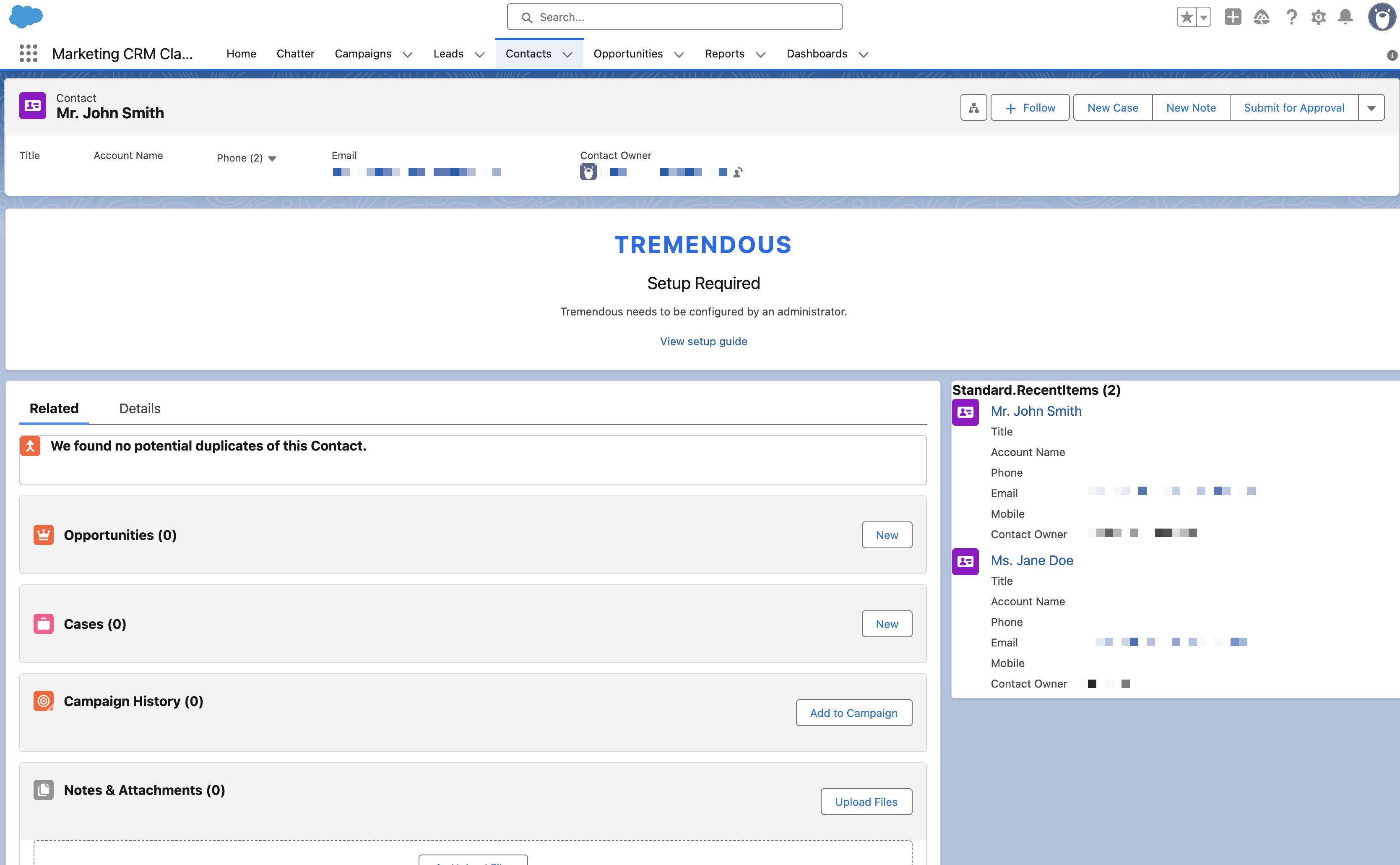
Step 2: Connect to Tremendous
1. Go to your Tremendous dashboard (https://app.tremendous.com)
2. From the sidebar, go to Team settings → Developers
3. Click Generate API key
Note: If your account does not yet have API access, please follow the on-screen instructions to request access.
4. Give your new API key a name
5. Click Generate API key
6. Copy your new API key and save it somewhere safe for the next steps
7. From Salesforce, search for the Tremendous app
8. Click Connect on the Tremendous component
9. Enter the required credentials
a. Paste in the relevant Tremendous API URL
| Environment | URL |
|---|---|
| Production | https://api.tremendous.com |
| Sandbox | https://testflight.tremendous.com |
b. Paste in the API key generated from your Tremendous dashboard
10. Click Save and connect
11. Set your funding source to Tremendous balance. Rewards sent via the Salesforce integration must be funded from your Tremendous account balance. Learn how to fund your account here.
12. Click Save
⚠️ Note: Steps 3 and 4 are required if you are providing Tremendous gifting access to non-admin users.
Step 3: Create a Permission Set
1. Log in as an Administrator on Salesforce
2. Go to Setup
3. Go to Permission Sets
4. Create a new Permission Set, or edit an existing one
5. Within your permission set, configure the Object Settings and Apex Class Access:
1. Go to Object Settings
a. Ensure the permission set grants read and write access to Contacts
2. Go to Apex Class Access
a. Click Edit
b. Add TremendousService
c. Click Save
Step 4: Assign the Permission Set to your users
If you manage individual users
1. Log in as an Administrator on Salesforce
2. Go to Setup
3. Go to Users
4. Go to Permission Set Assignments
5. Click Edit Assignments
6. Add your new Permission Set
7. Click Save
If you use User Access Policies
1. Log in as an Administrator
2. Go to Setup
3. Go to User Access Policies
4. Ensure the new Permission Set has a Grant action for your chosen configuration.
Sending a reward via the Tremendous for Salesforce app
1. Log in to Salesforce
2. Navigate to any Contact or Person Account, depending on where you added the Tremendous component
3. Click Send reward
4. Select the Campaign and enter the Reward amount to send. If your organization has set up custom fields, ensure that those are correctly populated.
5. The most recent rewards can be seen from the record's page and a full history can be found on the Tremendous dashboard